How to use HolaParcel, step by step
Here's every screen you'll see, from signing up to walking out of the shop with your parcel. It takes about five minutes to get your address, and you can do it all on your phone.
- First delivery €4.99
- Up to 3 parcels per delivery
- Collect with your QR code
Sign up
Your account takes a minute. You only need an email address.
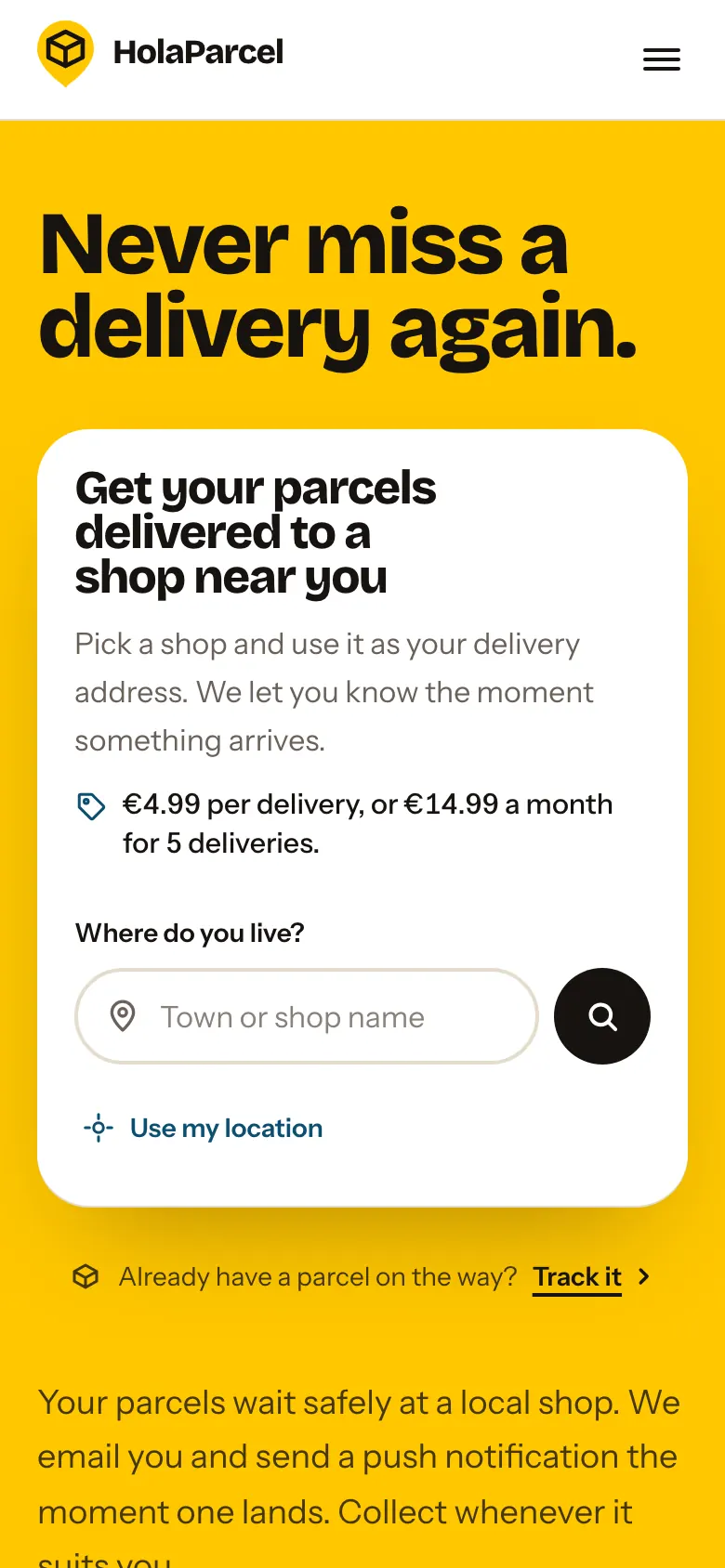
Step 1: Open holaparcel.com
On your phone or computer, go to holaparcel.com and tap Get your address. You can also get the app from the App Store or Google Play.
Step 2: Create your account
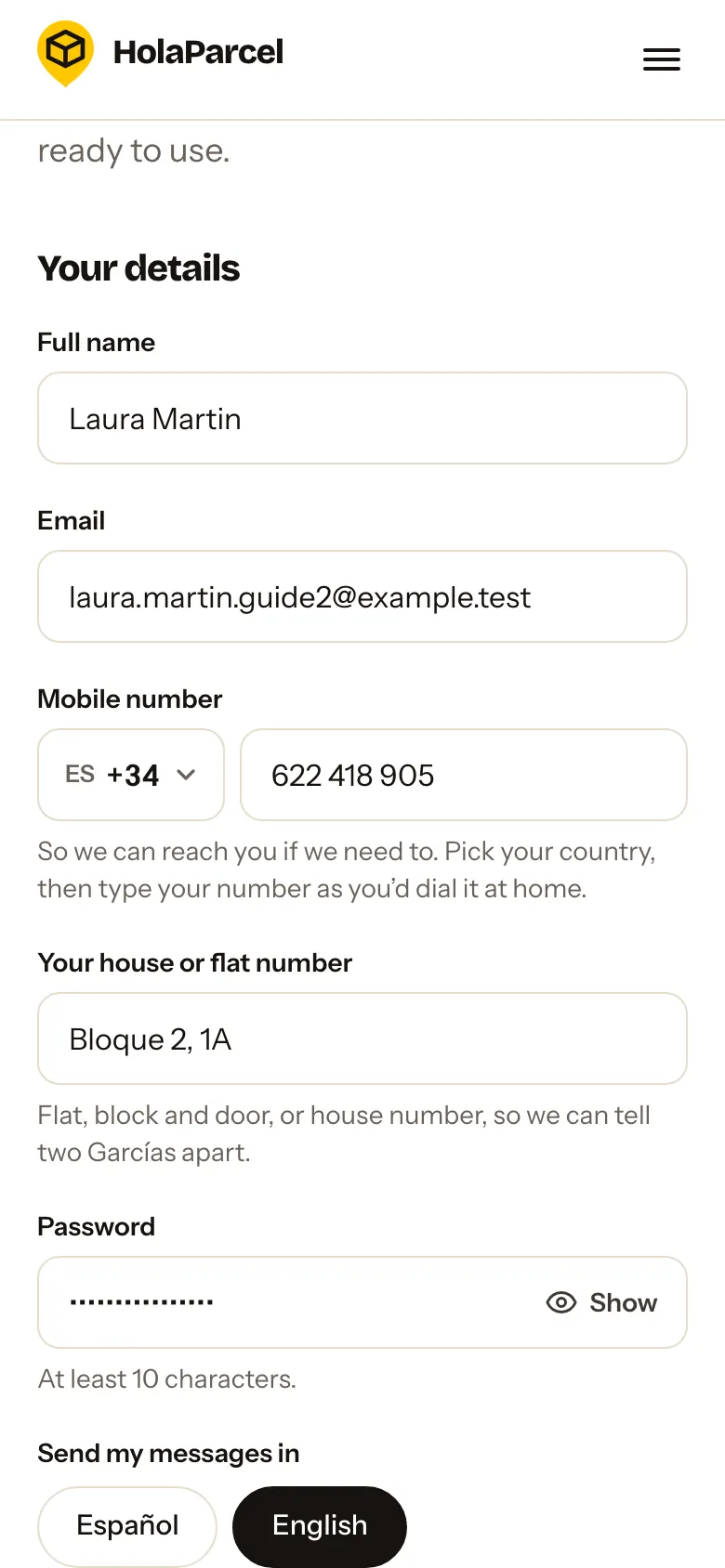
Type your name, email, mobile number, your flat or house number and a password. Then accept the terms and tap to carry on.
Step 3: Check your email
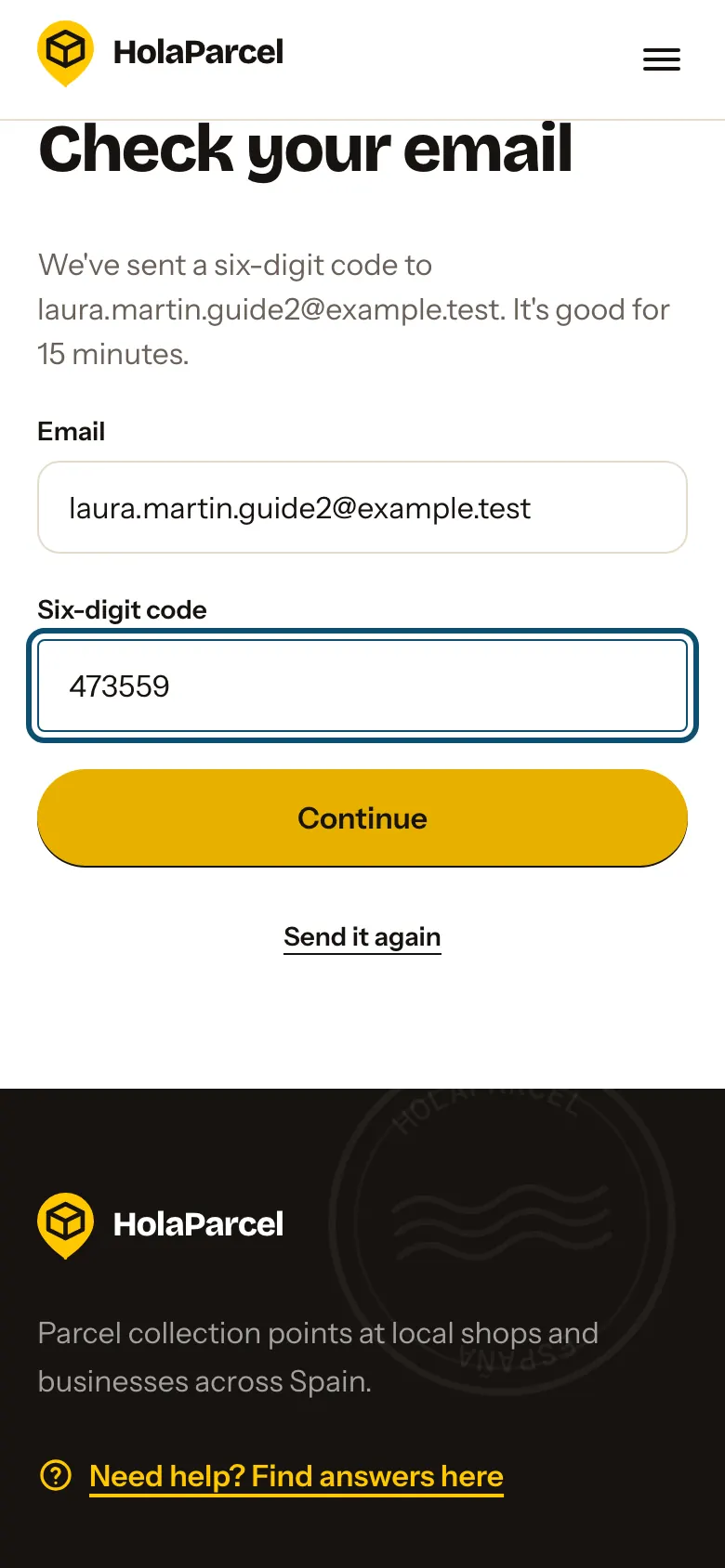
We send you a six-digit code. Type it in and your account is ready. Can't see it? Have a look in your spam folder.
Choose your shop
Pick the shop that will hold your parcels. Choose one you pass anyway.
Step 4: Start on Home
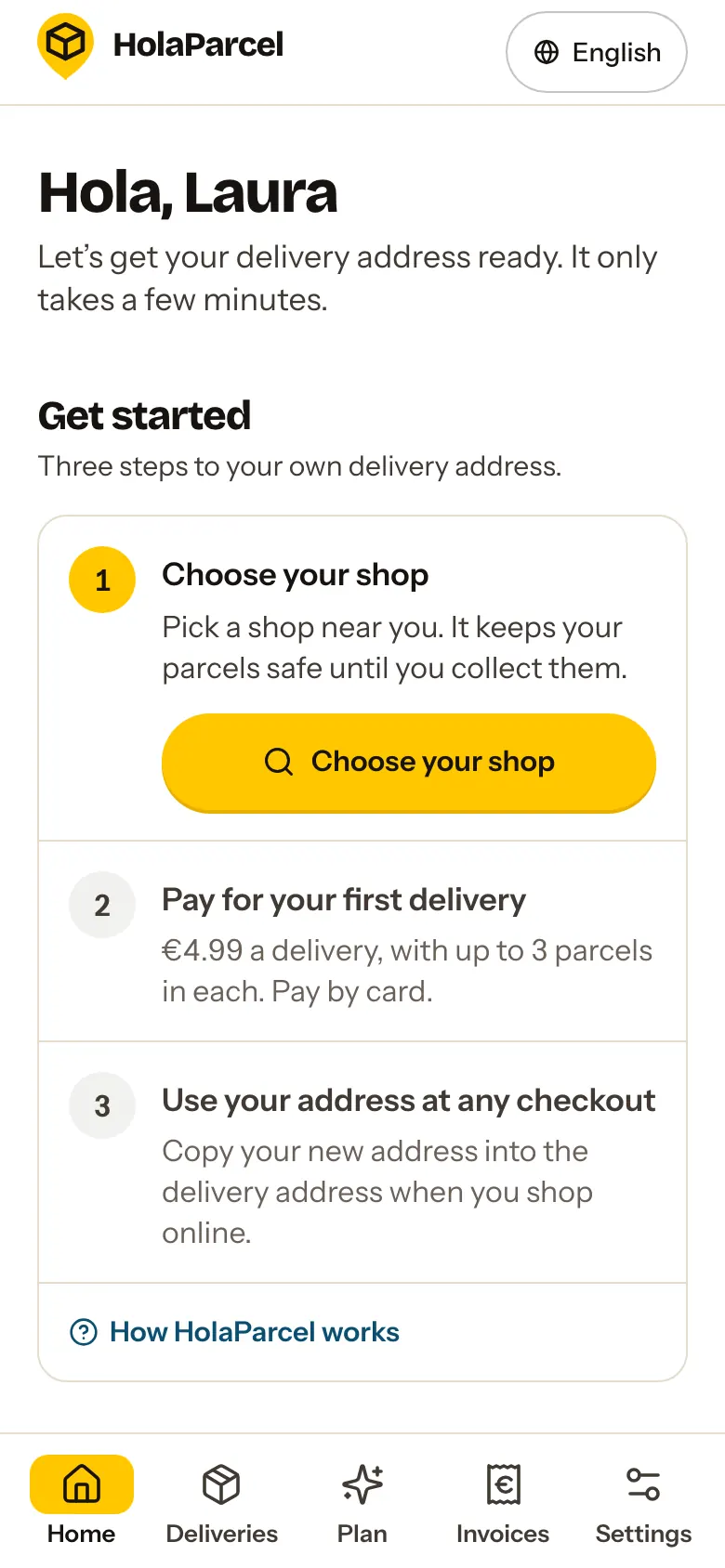
Home shows three short steps. Tap Choose your shop to begin.
Step 5: Find a shop
Search by the shop's name or your town, or tap Nearest to me. Then tap a shop to see more.
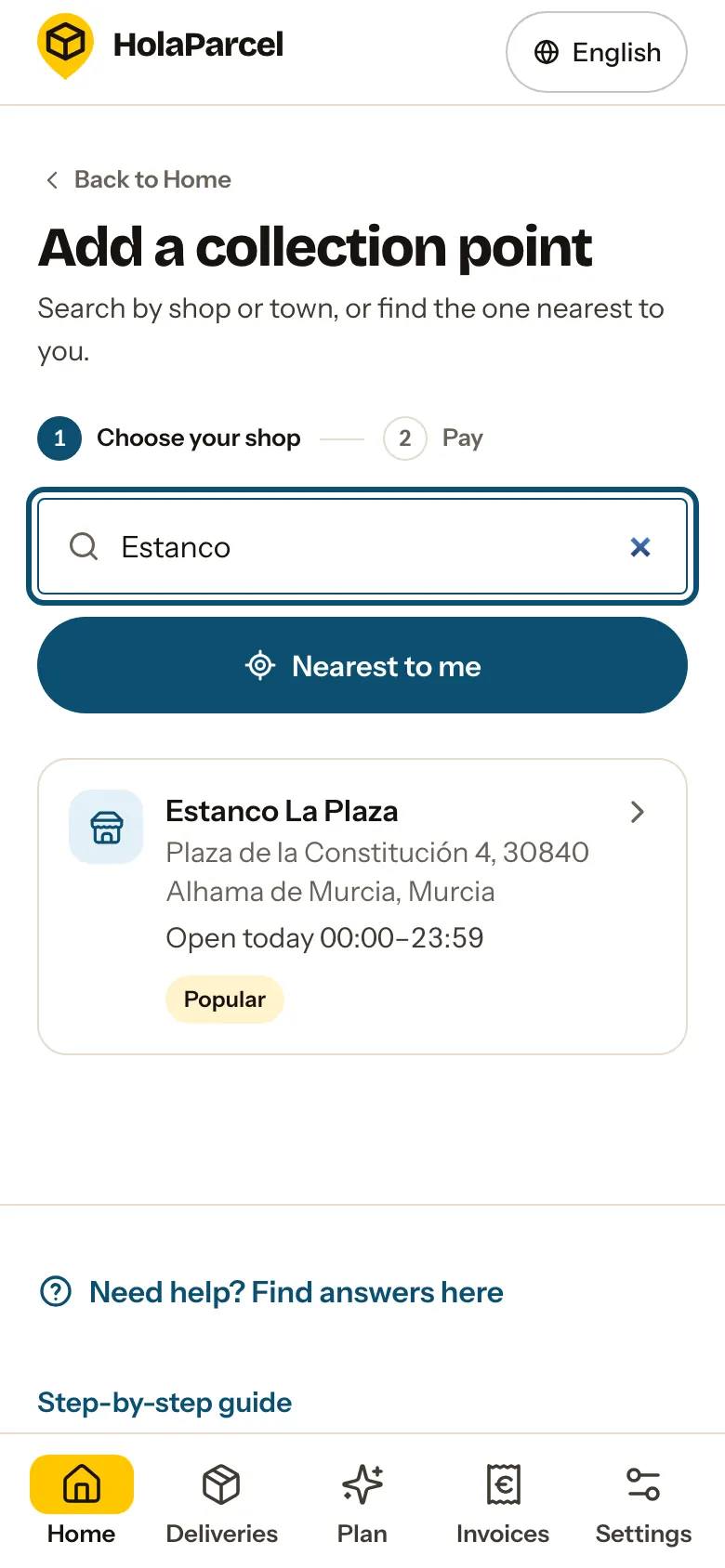
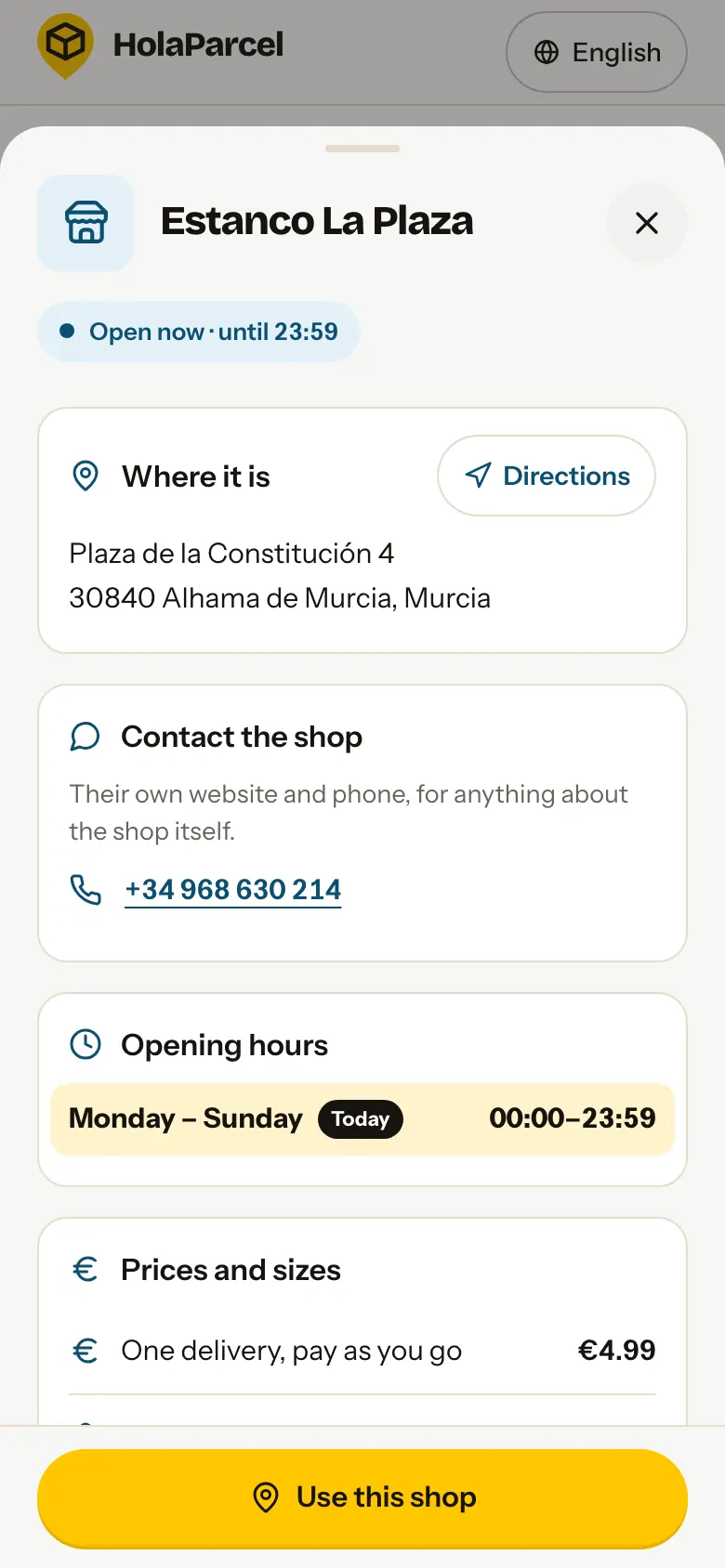
Step 6: Check the shop's details
Look at the address, the opening hours and the prices. If it suits you, tap Use this shop.
Pay and get your address
Your address appears as soon as your first delivery is paid for.
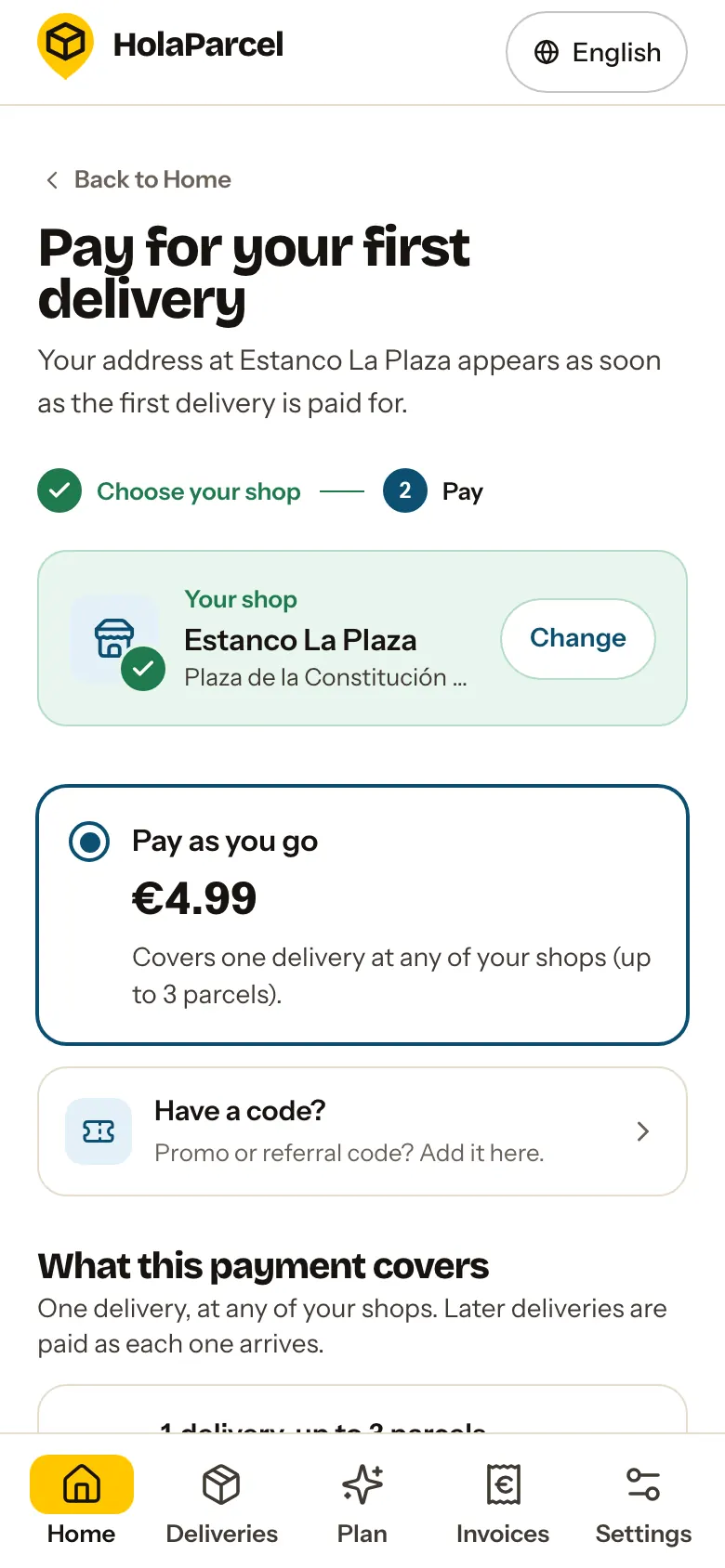
Step 7: Pay for your first delivery
Pay as you go costs €4.99 for one delivery, which covers up to 3 parcels arriving the same day. If someone gave you a code, add it here.
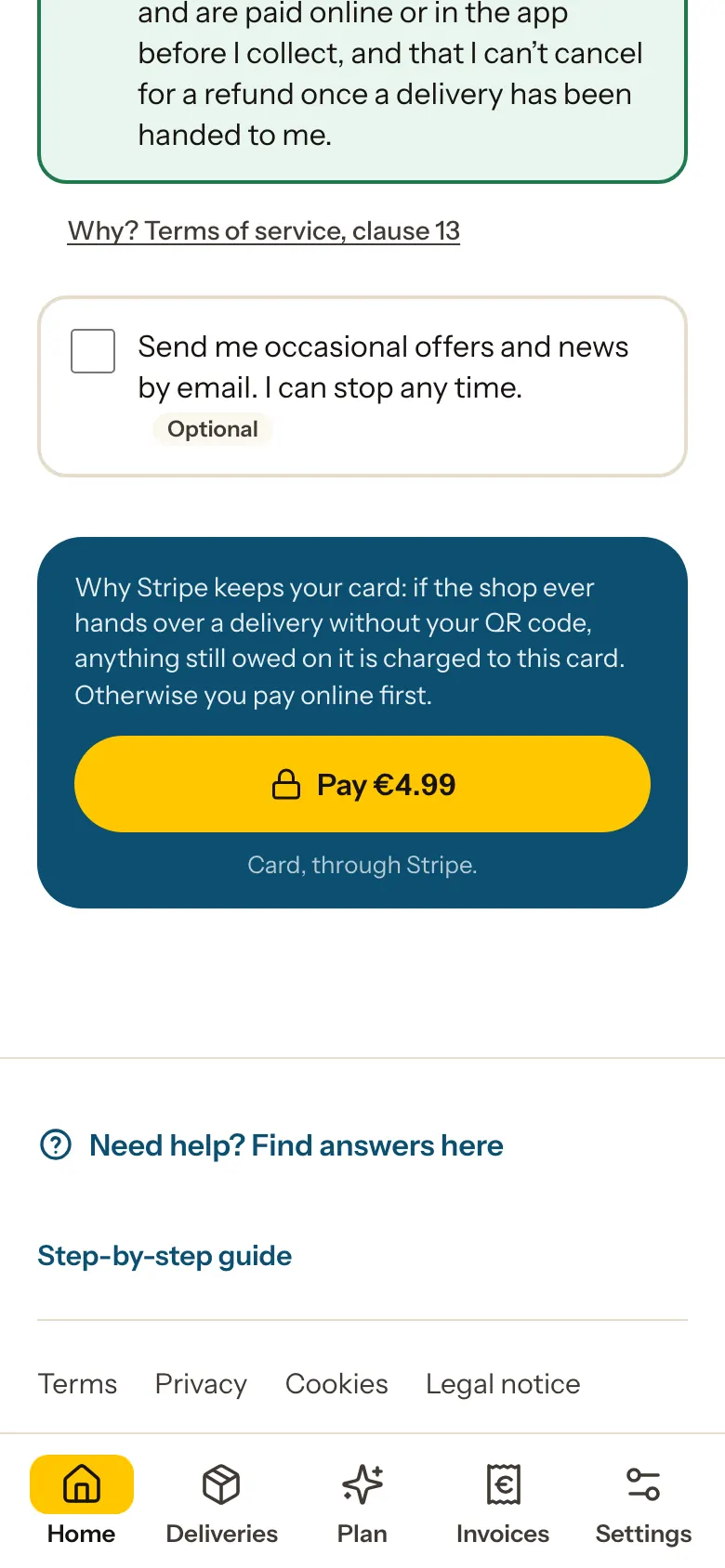
Step 8: Tick both boxes and pay
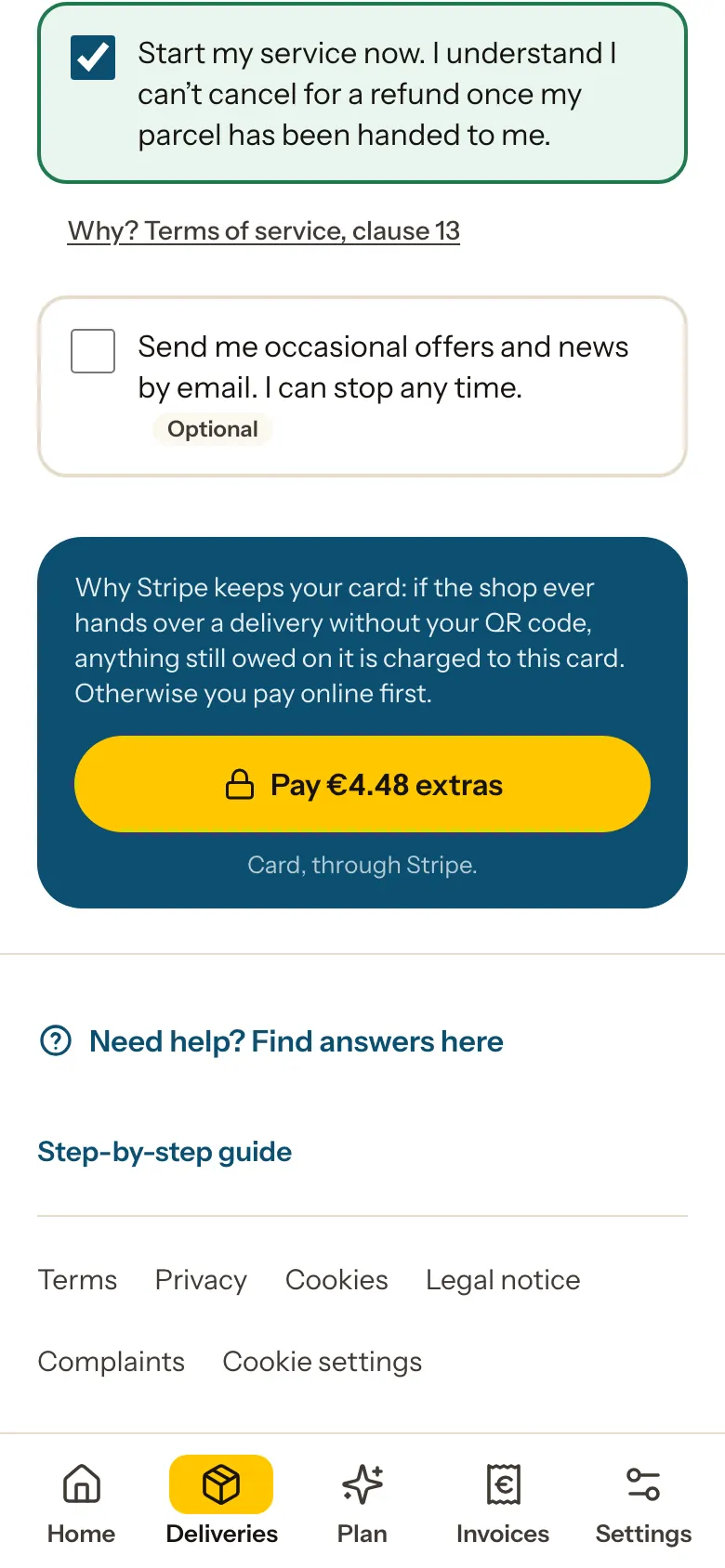
Accept the terms and agree to start the service now, then pay by card. The card is kept by Stripe, not by us.
Step 9: Your address is ready
That's it. Your HolaParcel address is ready, with your Hola ID on it. The Hola ID is yours and stays the same at every shop you use.
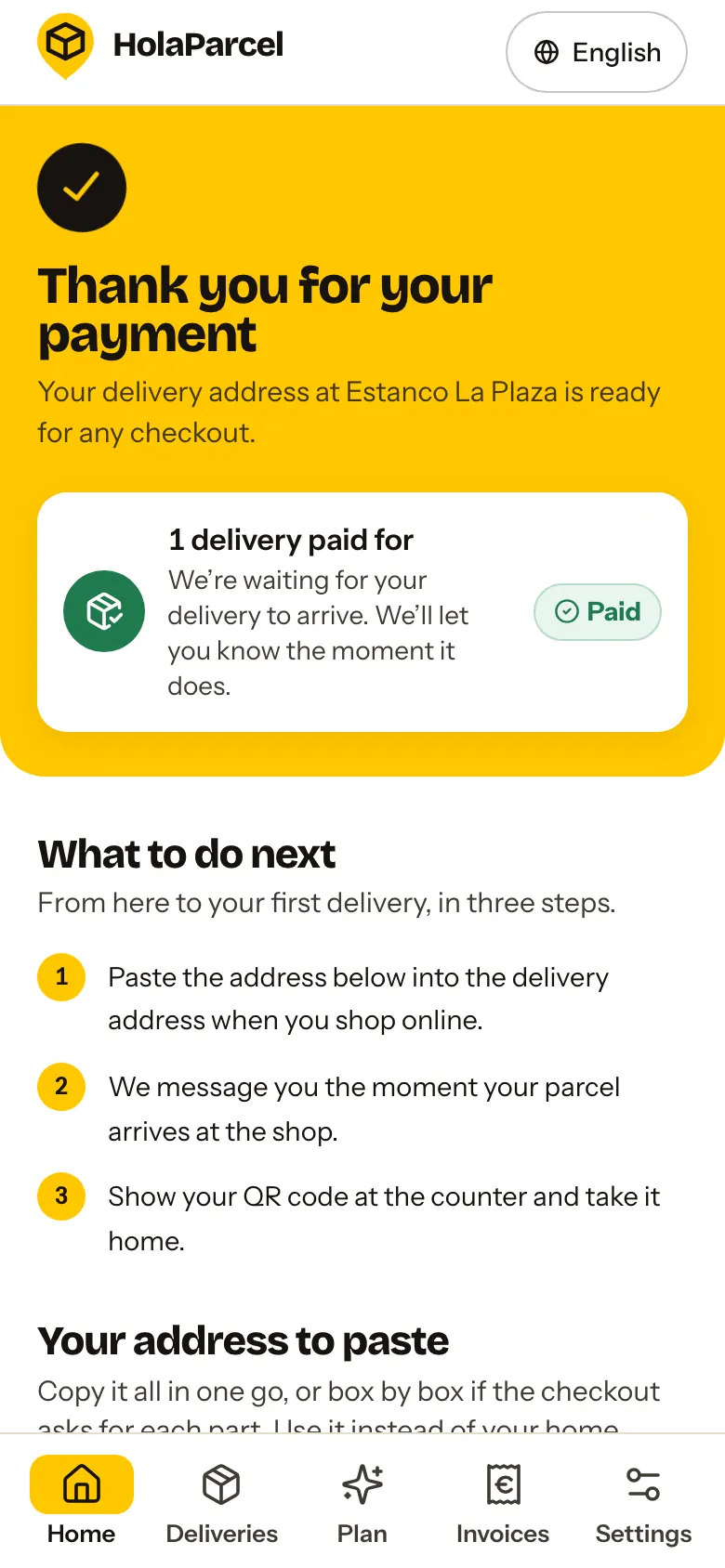
Step 10: Copy your address
Tap Copy all and paste it into any online checkout instead of your home address. Keep your Hola ID in the name line so the shop knows the parcel is yours.
When your parcels arrive
We tell you the moment the shop has them. Sometimes there's something small to pay first.
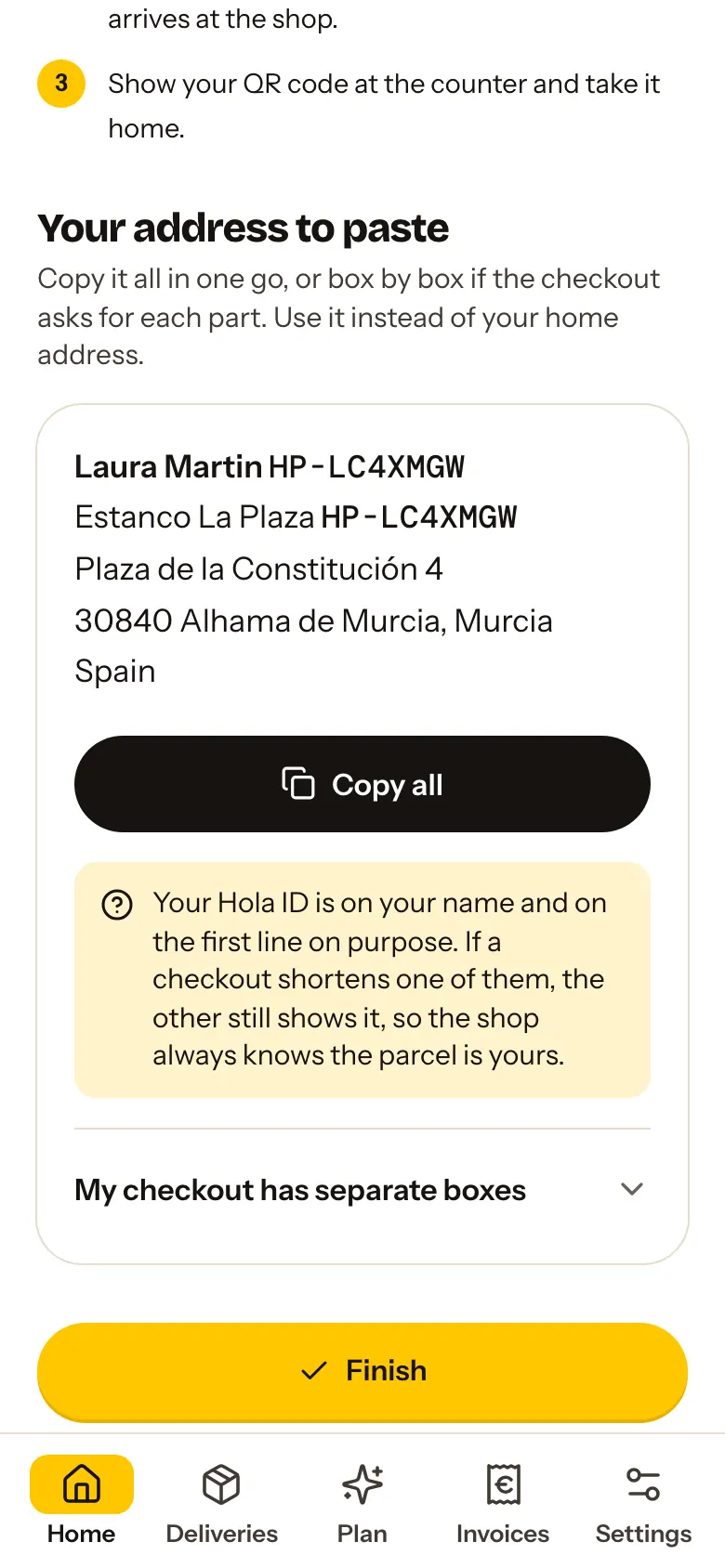
Step 11: Tell us what you ordered
This is optional. Add the shop you bought from and a note, so you know which parcel is which. Only you see it.
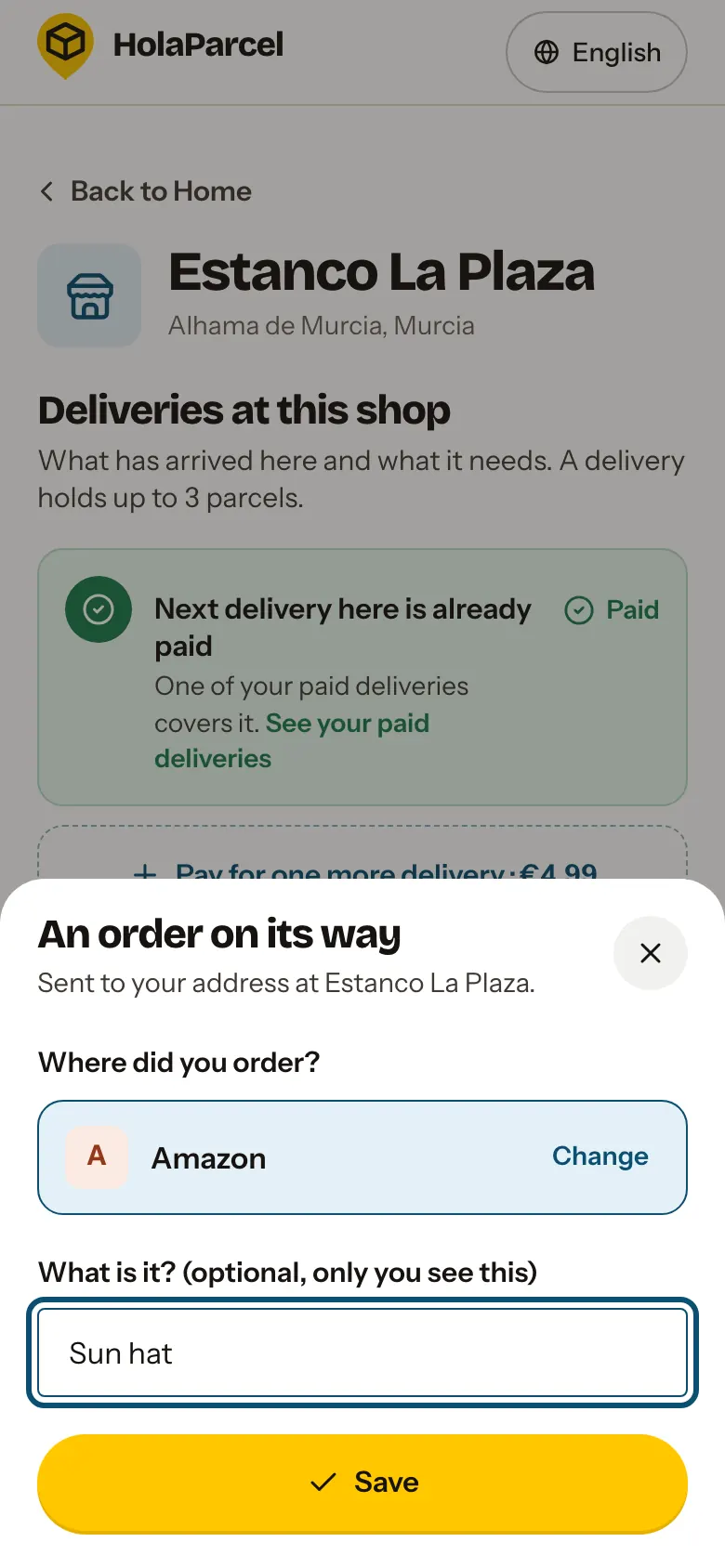
Step 12: Your delivery has arrived
You get an email and a notification when it reaches the shop, and it shows on Home. The first 5 days on the shelf are free.
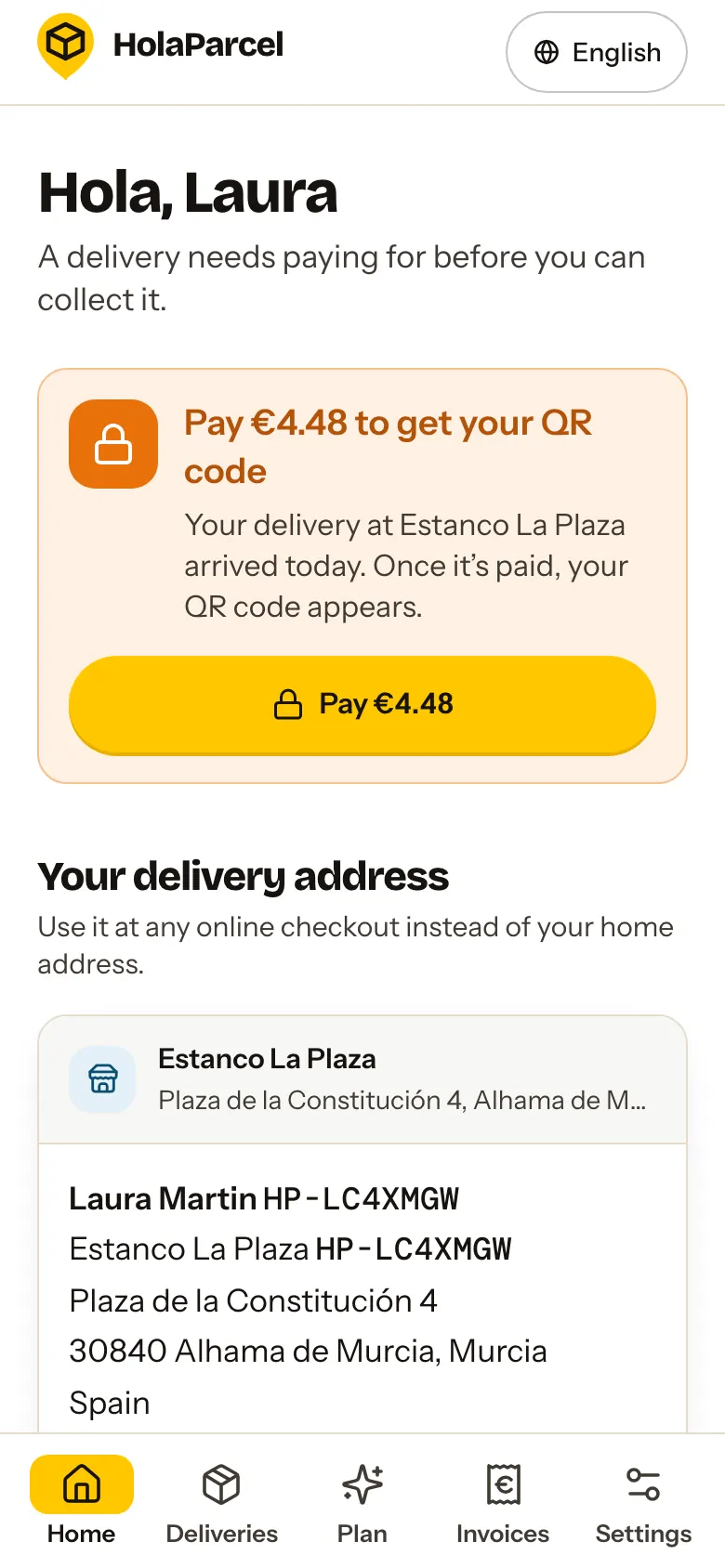
Step 13: Extras to pay
A delivery includes 3 parcels. Each one more is €1.49, and an oversized one is usually €2.99. Here it's 4 parcels with one oversized, so €4.48 to pay before the QR code shows.
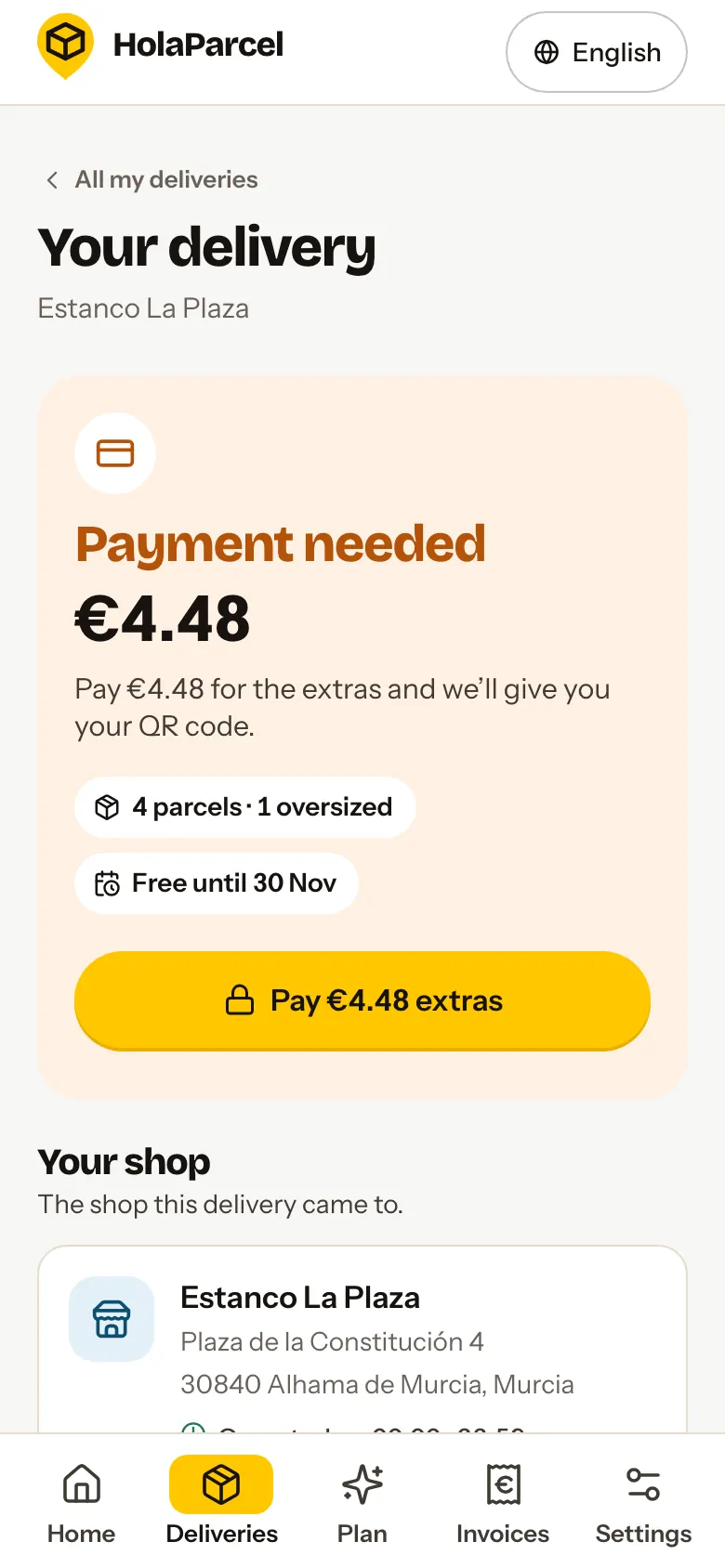
Step 14: Check the extras and pay
You see exactly what you're paying for, line by line. Tick both boxes and tap Pay.
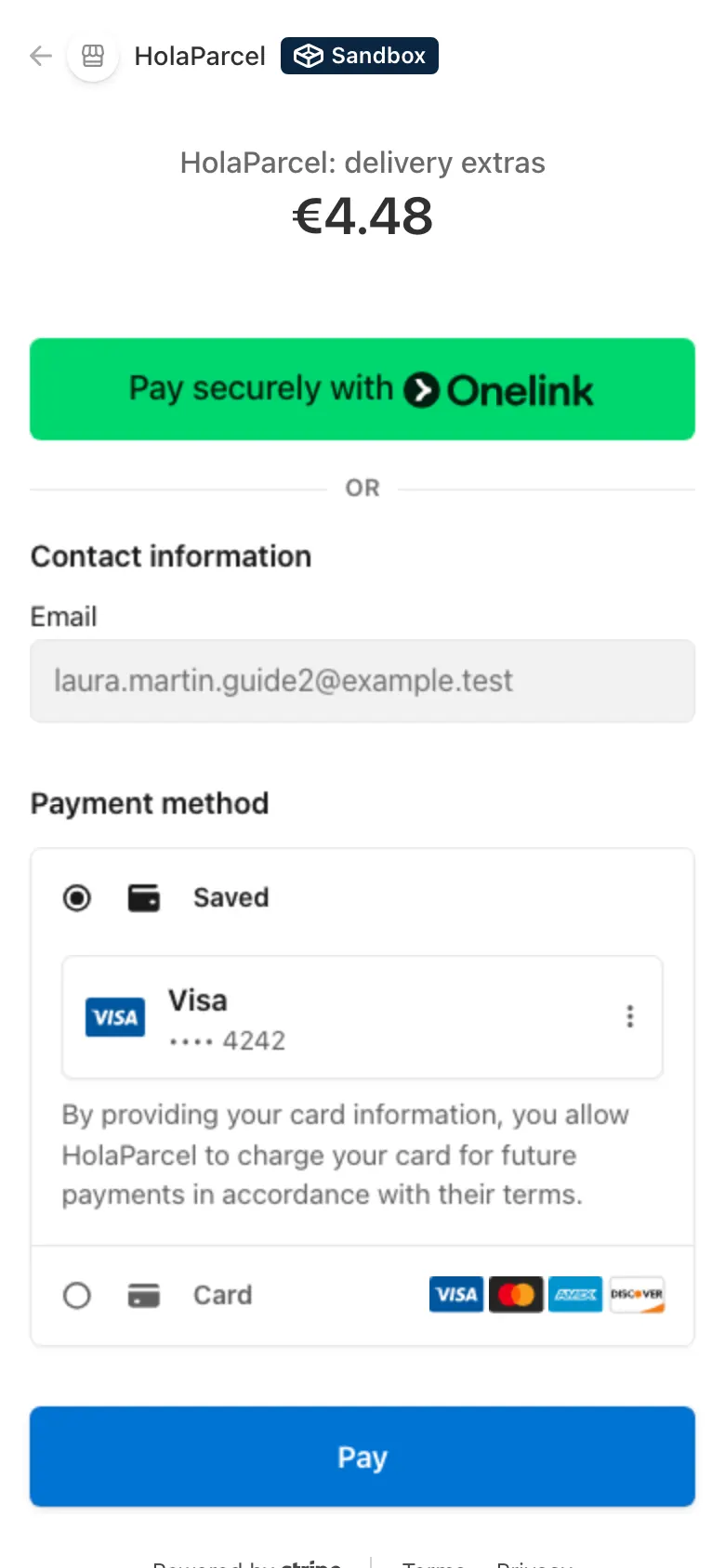
Step 15: Pay by card
Pay securely on Stripe's page. After your first payment your card is saved, so next time you just check it and tap Pay. Apple Pay and Google Pay work too where your phone has them.
Collect your parcels
Show your QR code at the counter and take your parcels home.
Step 16: Ready to collect
Once everything is paid, the delivery says Ready to collect. Go whenever the shop is open.
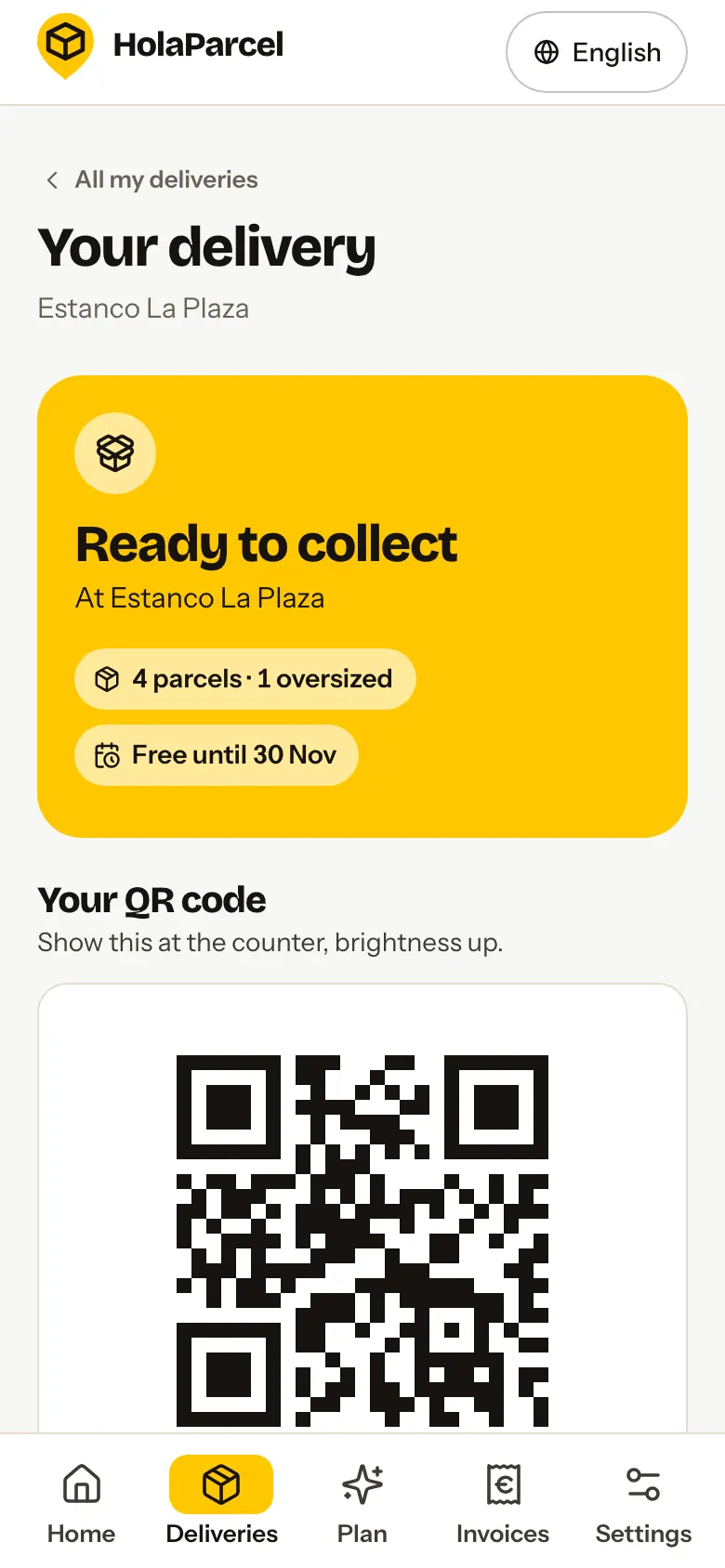
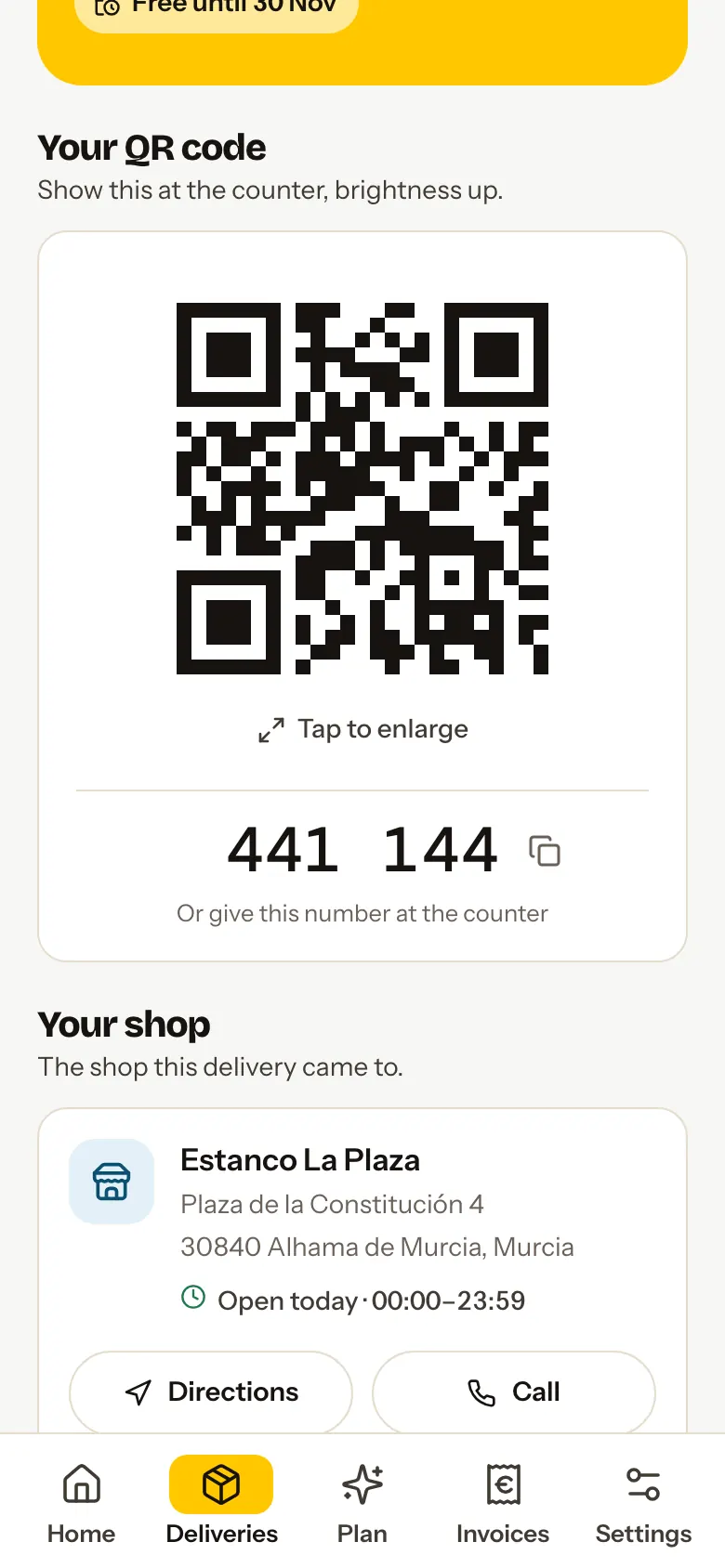
Step 17: Show your QR code
Turn your screen brightness up and show the QR code. If it won't scan, read out the six-digit number under it. Anyone with your QR code can collect, so you can send someone else.
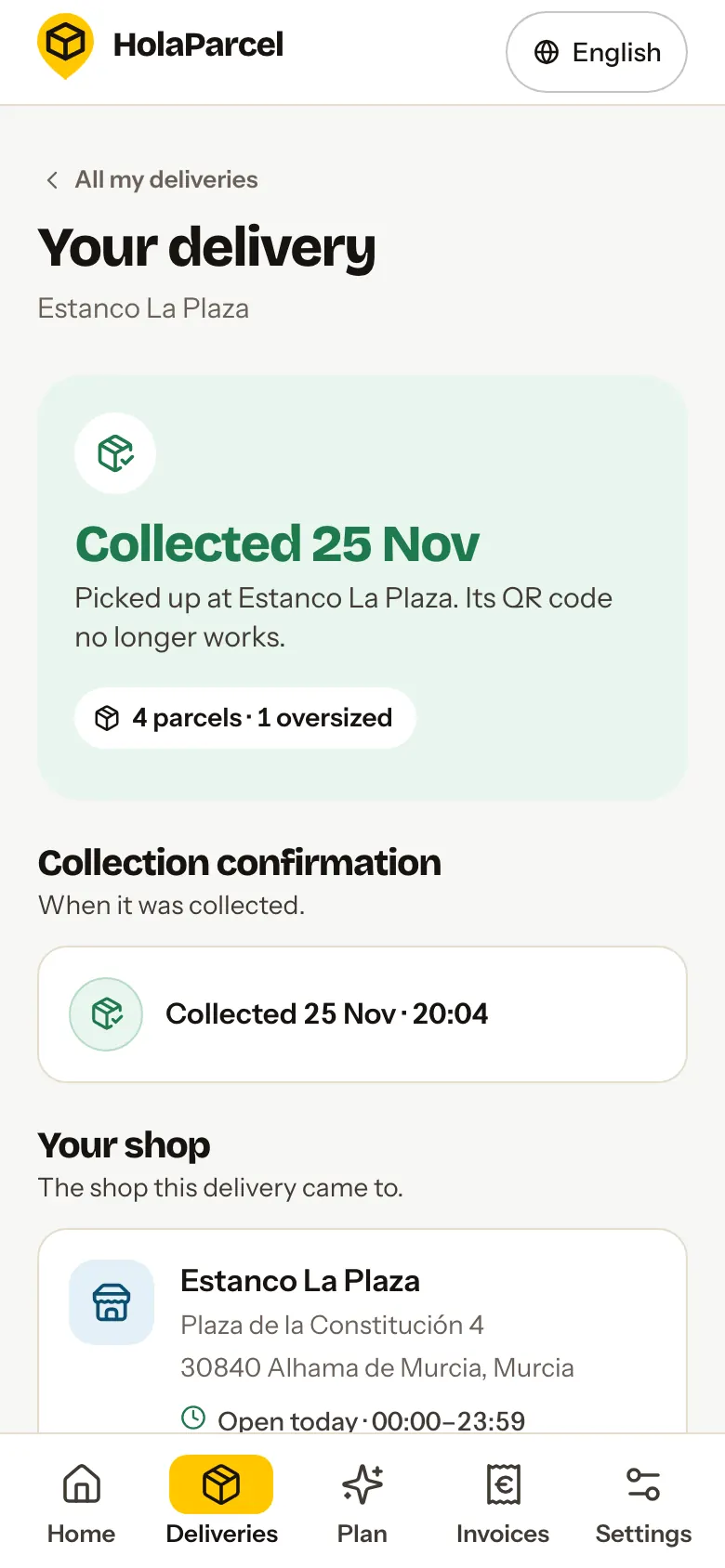
Step 18: Collected
Once the shop hands it over, the delivery shows as collected and the QR code stops working.
Invoices and settings
Your payments, your invoices and your account, all in one place.
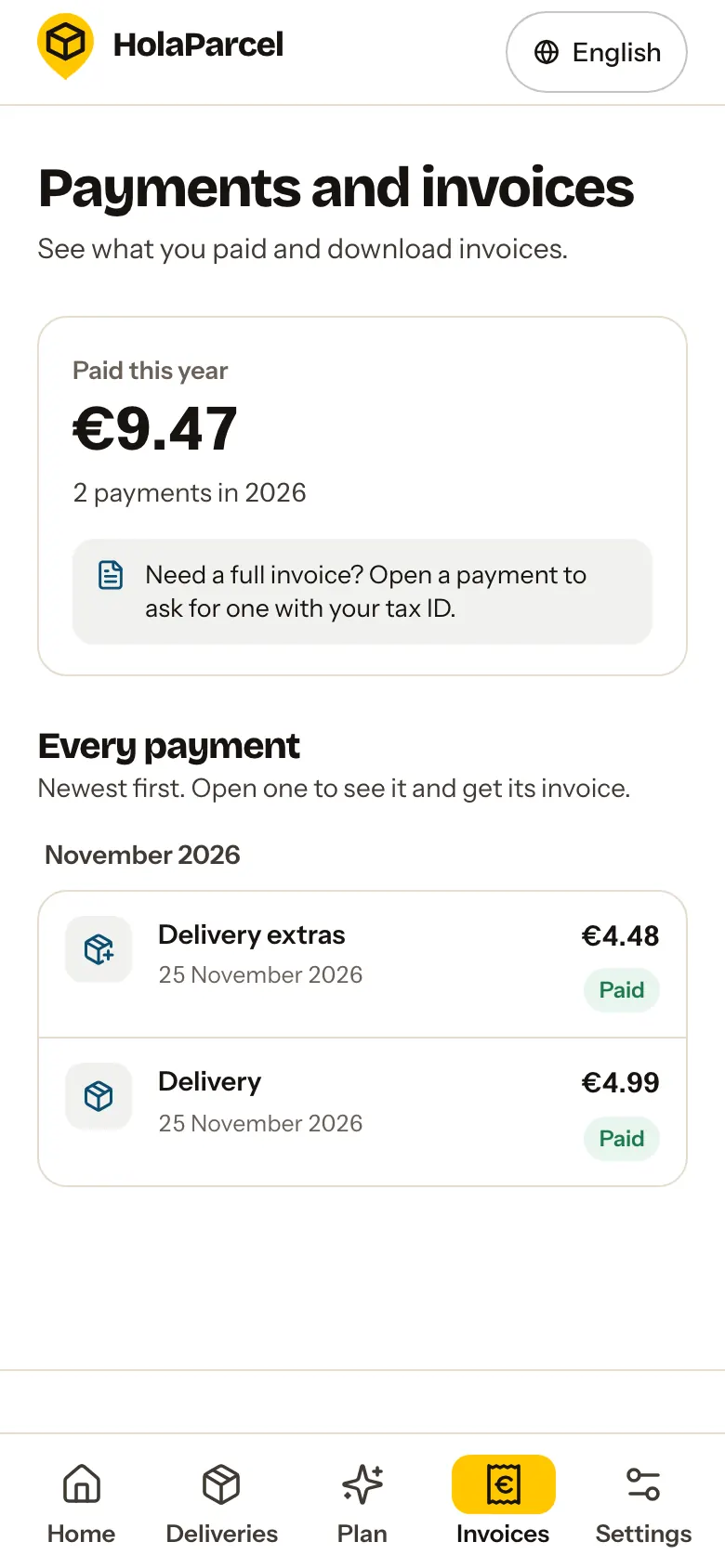
Step 19: Payments and invoices
Every payment you make is listed under Invoices, with this year's total at the top.
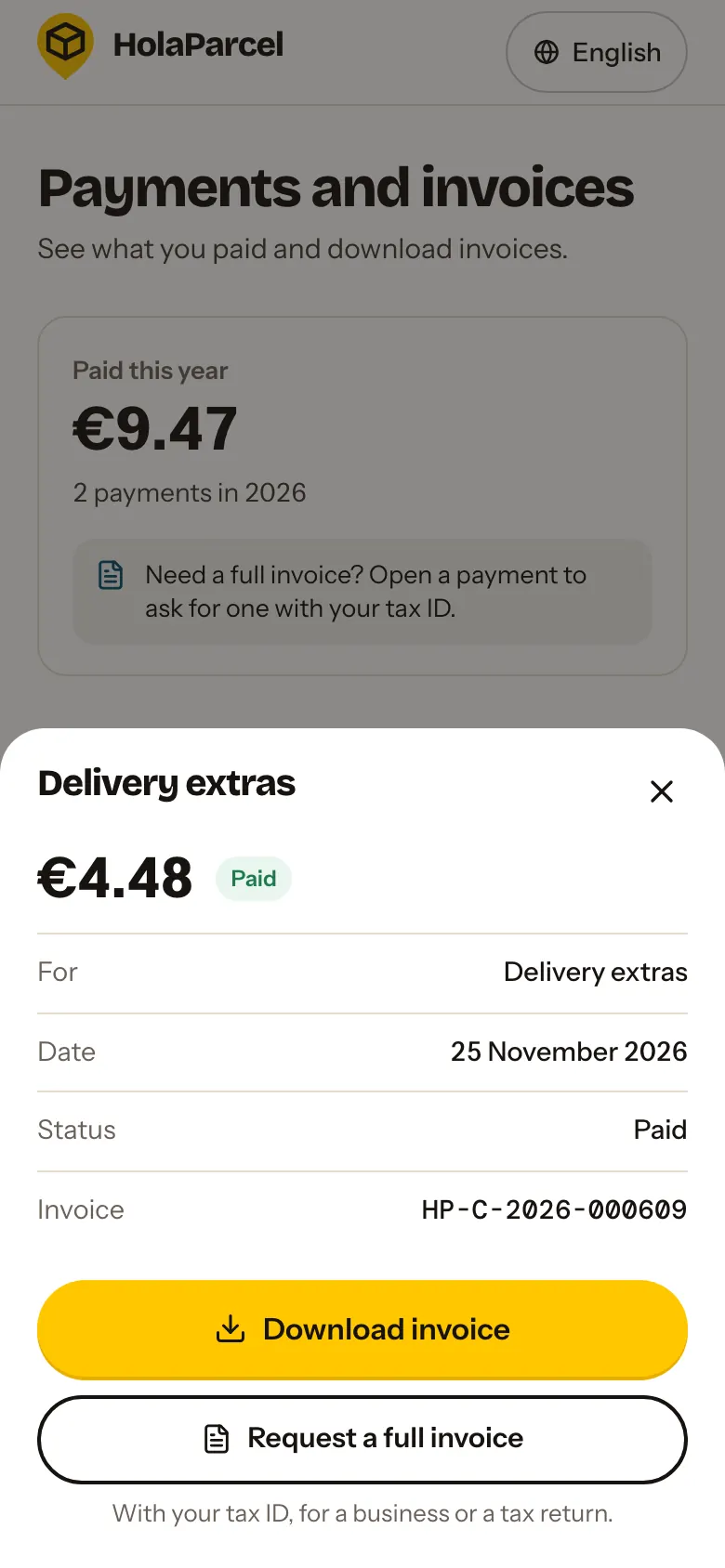
Step 20: Download an invoice
Open a payment to download the PDF. Need it for a business or a tax return? Request a full invoice with your tax ID.
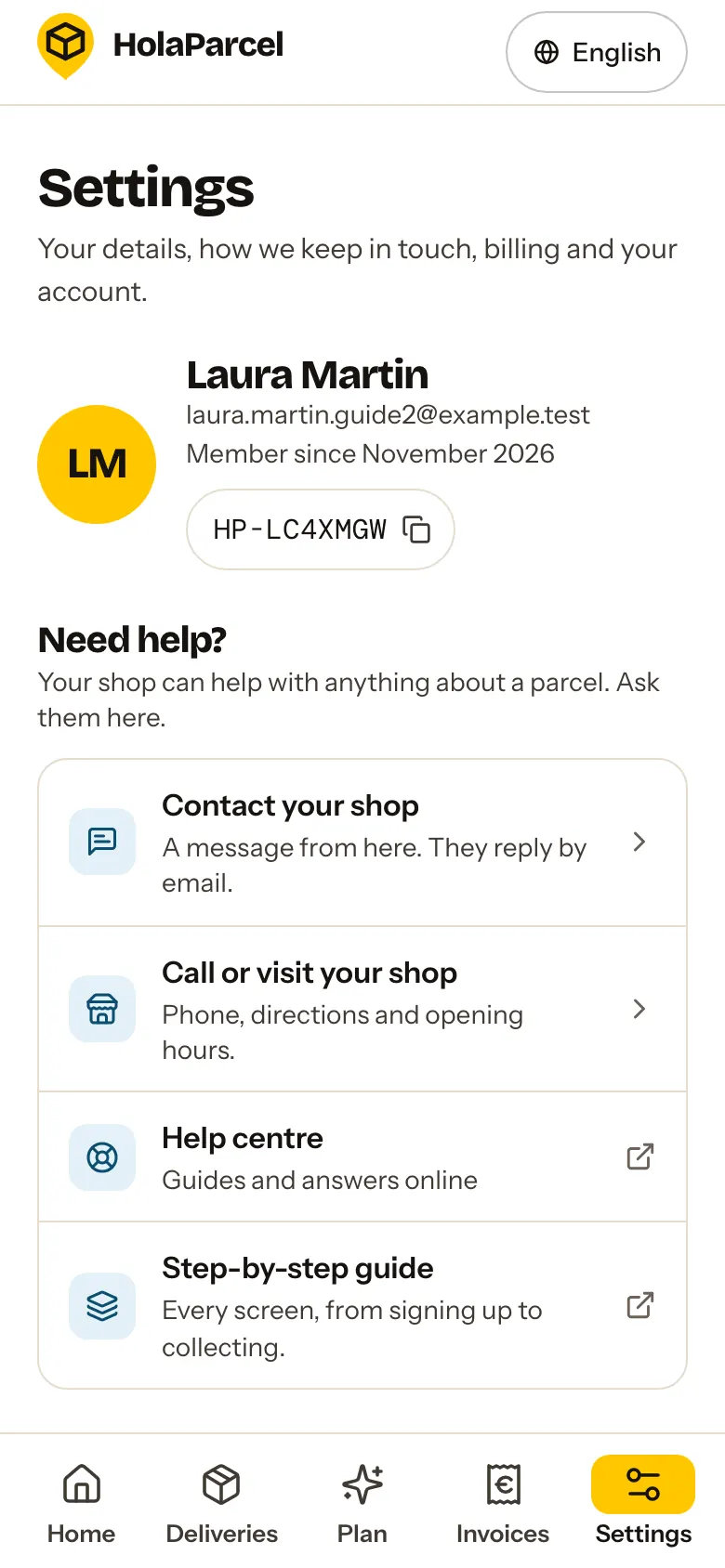
Step 21: Your settings
Change your details, language, messages, card and password, or close your account. Questions about a parcel? Use Contact your shop here and they'll reply by email.
Still stuck?
Most questions are answered in the FAQ. For anything about a parcel, write to your shop from Settings, Contact your shop.
Read the FAQ